

Reframe lets you take video and audio input source material in a variety of formats and convert it all in a single operation into output with a single consistent set of parameters. Here are just a few ideas of how you can use Reframe to dramatically streamline your workflow.
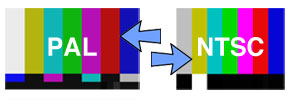
Converting between PAL and NTSC video
Reframe can convert video from PAL to NTSC or from NTSC to PAL. This allows you to take video from a DVD or camera using one video system and convert it for use in the other video system. For SD (Standard Definition) video, the process usually will involve conversion of both the frame size and the frame rate. For HD (High Definition) video, the process usually involves just conversion of the frame rate. Reframe handles the frame size conversion using polyphase filters and the frame rate conversion using motion compensation to give you the best possible quality.
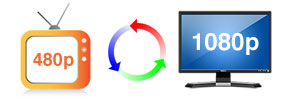
Converting between SD and HD video
Reframe can convert from SD (Standard Definition) video to HD (High Definition) video or vice versa. You might convert from SD to HD to take DV or DVD video and edit it together with HD camcorder video. You might convert from HD to SD to take HD camcorder or Blu-ray video and prepare it for use on a DVD. Both conversions usually involve just changes to the video frame size. Reframe handles this scaling using polyphase filters for the best possible quality.

Converting from film to video
Reframe can convert movies shot at the film frame rate of 24 fps or 23.976 fps to more standard video frame rates. This allows you to edit together film and video material. For conversion to NTSC video frame rates, Reframe can handle the conversion using an interlaced Telecine (e.g. 2-3 pulldown) process, or by doing a true frame rate conversion. For PAL video frame rates, Reframe will do a true frame rate conversion. Reframe handles true frame rate conversions using motion compensation to give you the best possible quality.
Converting between anamorphic and true aspect
Reframe can handle frame size conversions from anamorphic video to true aspect ratio video and vice versa. This allows you to take video from DVDs or DV camcorders and render them into the true frame sizes for viewing on a computer or on the web. You can also take true aspect ratio computer or web video and create anamorphic video suitable for a DVD. Reframe handles these scaling conversions using polyphase filters for the best possible quality.

Converting video for TV display or presentations
Reframe can convert video into compressed formats suitable for TV display devices (e.g. Apple TV) or for presentations (e.g. PowerPoint or Keynote). Reframe can do this conversion using simple fixed settings for MPEG-4 or H.264, or using customizable settings to suit your needs. If you have multiple clips, you can process them all using Reframe's convenient batch processing feature. When batch processing with Reframe, you have the option to combine all the video clips into one large clip, or to save each clip separately.
Converting video for mobile devices
Reframe can convert video into compressed formats suitable for mobile devices. Reframe supports compressed formats for higher quality playback devices such as iPods, iPhones, or tablets (mp4, m4v) as well as for lower quality playback devices such as 3G mobile phones (3gp). If you have multiple clips, you can process them all using Reframe's convenient batch processing feature. When batch processing with Reframe, you have the option to combine all the video clips into one large clip, or to save each clip separately.