

With 3 easy steps, Reframe lets you convert between different video and audio standards or formats.
Step 1: Add Your Movie, Video, or Audio Clips to the Input List
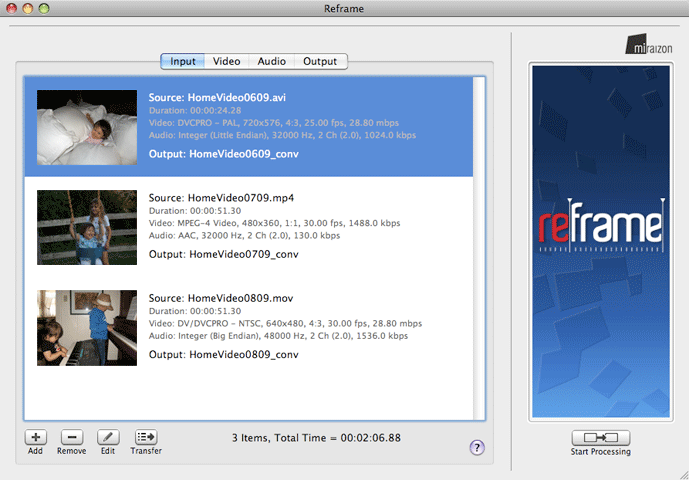
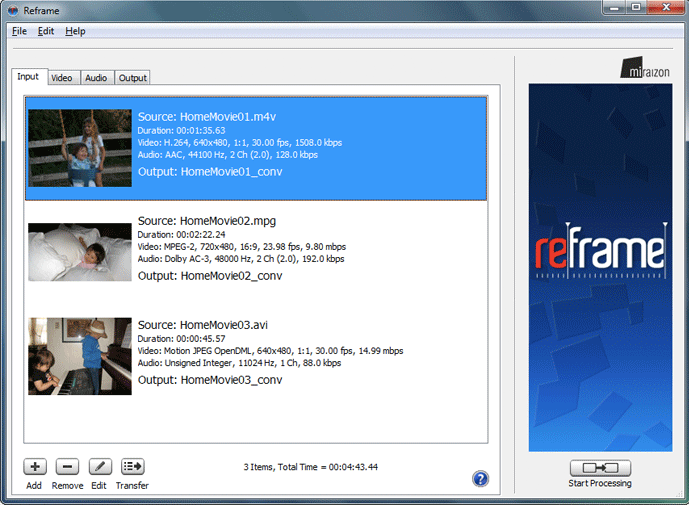
- Add as many movie, video, and audio clips as you like to the Input List for batch processing
- Add movie, video, and audio clips in a variety of formats to the Input List (including mov, avi, mp4, m4v, mpg, dv, 3gp, aif, wav, and mp3)
- View the auto-detected properties (e.g. video frame size, frame rate, audio sampling rate, sample size, etc.) of each input clip
- Edit the properties of each input clip if necessary
- Choose an output file name for each input clip
- Organize the input clips in your preferred order if combining the clips into a single output file
- Save the Input List and load it again later for reuse
- Easily copy the properties of an input clip to the Video and Audio tabs
Step 2: Select Conversion Options for Video and Audio
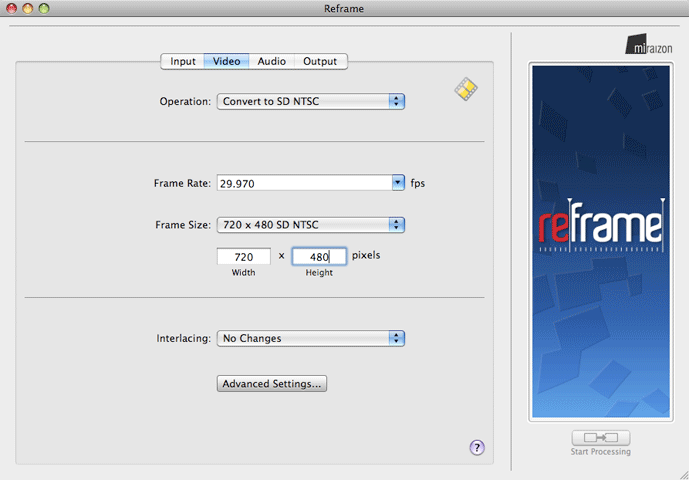
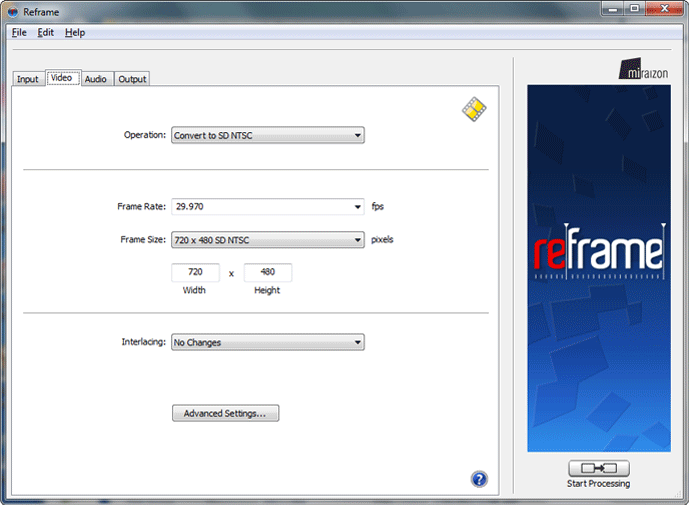
Standard video and audio features for all users:
- Select among the pre-defined video operation settings to effortlessly set the best frame size and frame rate for your video conversion goals
- Select among the pre-defined audio operation settings to effortlessly set the best sampling rate and sampling size for your audio conversion goals
- Select the volume gain option to adjust the audio volume
- Save your video and audio settings and load them later for reuse
Advanced video features for professional users:
- Custom-define video frame size and frame rate settings to meet your conversion goals (Reframe uses high quality polyphase filters and motion compensation for optimal frame size and frame rate conversion results)
- Select a video interlacing option (choices include high quality de-interlacing with motion compensation and field order reversal)
- Use the Video Advanced settings window to further fine-tune your video conversion operation with options including: choice of frame rate conversion algorithm, choice of motion vector search algorithm, frame aspect ratio scaling options, scene change and frame resampling thresholds, and intermediate file codec
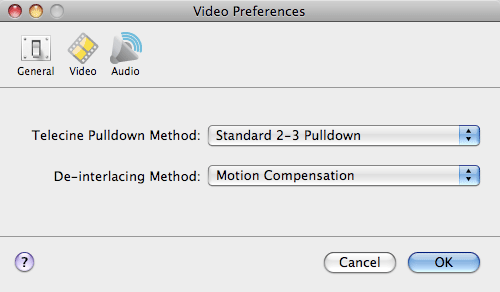
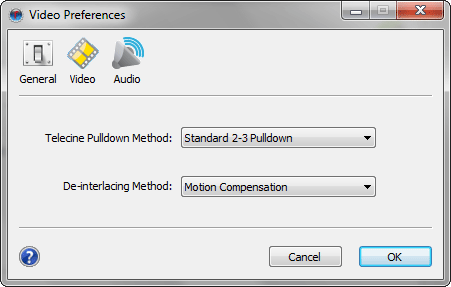
- Use Video Preferences (located under Reframe Preferences) to define the Telecine pulldown method and de-interlacing method you prefer
Advanced audio features for professional users:
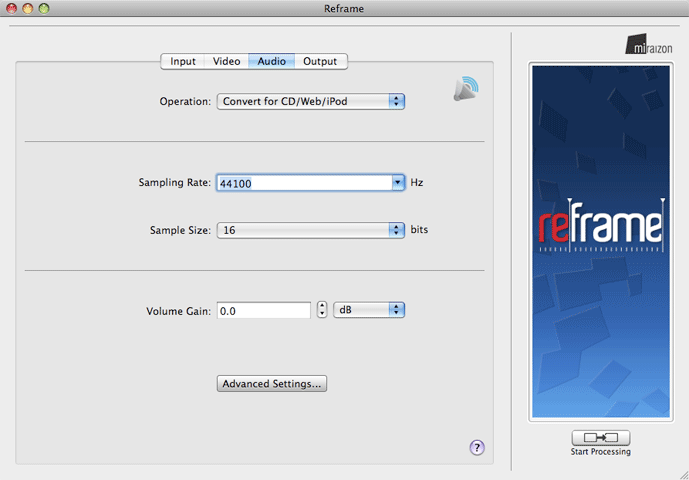
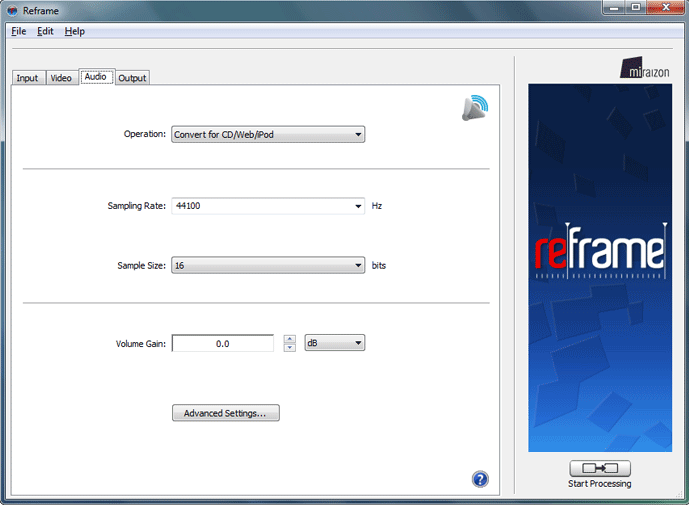
- Custom-define the audio sampling rate and sampling size
- Use the Audio Advanced Settings window to further fine-tune your audio conversion operation with options including: choice of resampling precision and dynamic range decoding
- Use Audio Preferences (located under Reframe Preferences) to define the audio intermediate file type you prefer
Step 3: Select Ouput Options and Start Conversion
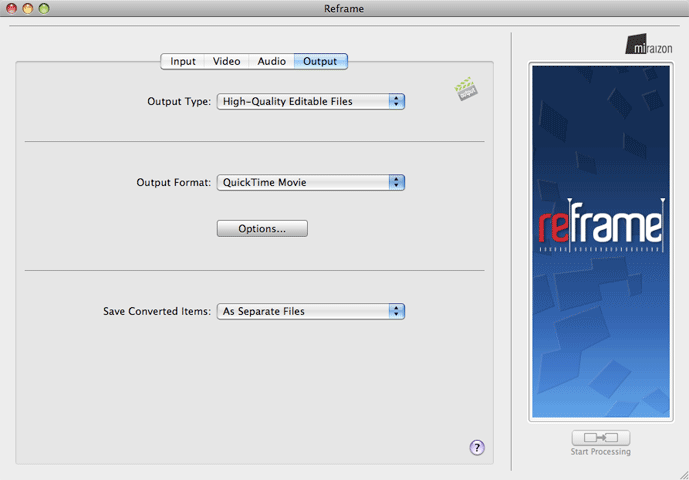
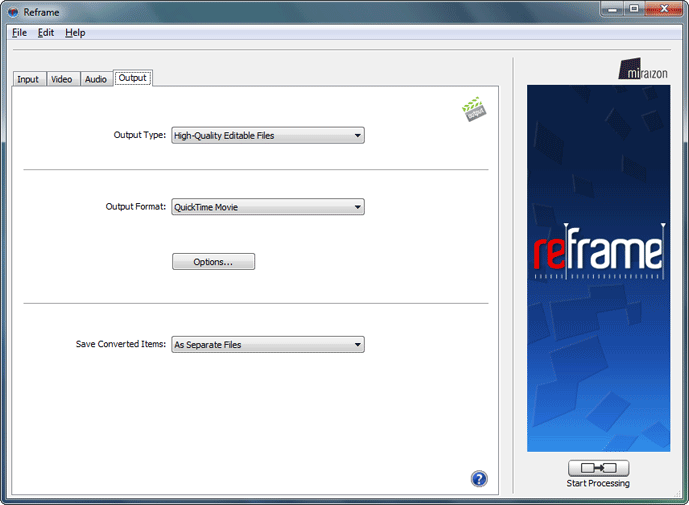
Standard features for all users:
- Select among the pre-defined Output Types to find a category that matches your conversion goals and to narrow down the best output format options
- Select among a variety of output file formats (including mov, avi,mp4, m4v, mpg, dv, 3gp, aif, and wav) to find the one that best meets your conversion goals
- Choose to combine all the batch list clips into a single output file, or to save them all separately
Advanced features for professional users:
- Use the QuickTime Options window to choose whether to save a self-contained or reference movie, and whether or not to include playback aspect ratio information
- Use the Advanced Export type to output using any QuickTime movie Export component installed on your machine
- Custom-configure any available options for your Advanced Export output format to fine-tune the final output